How-to
Playing Browser Games on a Chromebook: A Practical Guide
Why HTML5 games run on Chromebooks, how to make them load faster and run smoother, which controls work best on touch screens, and how game progress is saved.
Chromebooks are everywhere in American schools. They are light, cheap and last all day on a charge, but they are not built for big downloaded games. That is exactly why browser games are popular on them: everything runs inside Chrome, with nothing to install. This guide explains how browser games work on a Chromebook and how to get the best experience from them.
Why browser games work on Chromebooks
Modern browser games are built with HTML5, the same web technology used by ordinary websites. The game's code, images and sounds download when you open the page and run directly in the browser. Older browser games used Flash, a plug-in that stopped being supported at the end of 2020, but HTML5 games need no plug-in at all.
Because of that, the same game can run on a Chromebook, a Windows laptop, a Mac, a tablet or a phone. Every game on Five Min Games is an HTML5 game.
Making games load faster
- Close other tabs. Chromebooks often have limited memory. A dozen open tabs, especially video sites and online documents, slow everything down.
- Give it a few seconds. A game downloads its files the first time you open it. The second time is usually faster because the browser keeps some files.
- Pick lighter games on older devices. 2D puzzle games run well on almost anything. 3D racing and action games need more power. If a 3D game stutters, try a 2D game from the same category.
- Use full screen. Our game pages have a Full screen button. Besides looking better, it can make some games feel smoother.
Keyboard, touchpad or touch screen?
Many Chromebooks have touch screens, and some fold into tablets. Games handle input differently, so it helps to choose the right game for your setup.
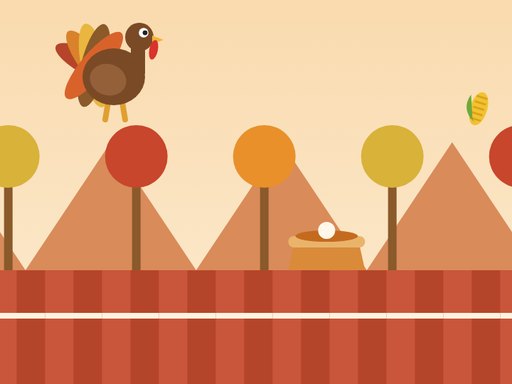
- Keyboard games (Space, arrow keys or WASD) are best for runners and timing games, such as our one-button runner Turkey Dash or the arcade game Mural Dash.
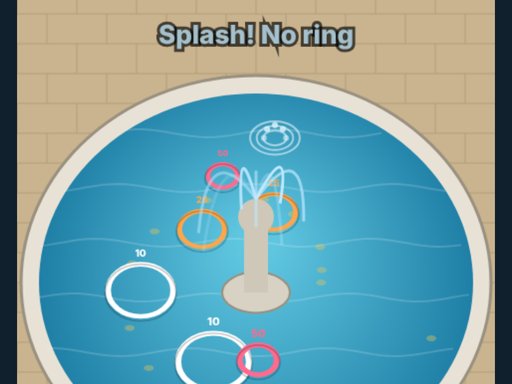
- Touchpad and mouse games suit aiming and dragging, like Wishing Fountain or Roll to the Bowl.
- Touch-friendly games are marked "Touch friendly" on their game page. Puzzle games such as Lantern Lights or Spot the Difference: Japan work well when you tap directly on the screen.
If dragging on a touchpad feels clumsy, a basic USB or Bluetooth mouse makes aiming and drag-and-drop games much easier.

How game progress is saved
Browser games usually save your progress, like your best score or the last level you reached, in your browser's local storage on that device. That has a few consequences:
- Progress stays on the device and browser where you played. Playing on a different computer starts fresh.
- Clearing your browsing data, or using an incognito window, can erase saved progress.
- Shared school devices may be reset regularly, so do not expect long-term saves there.
This is one reason we favor games with short, complete rounds. You never lose much if a save disappears.
Sound and headphones
Most games have a mute button, usually a speaker icon in a corner. If you are in a library or a classroom, turn the sound off or use headphones before the game starts, since some games play music on the title screen.
Play responsibly at school
Every school has its own rules about using devices. Some allow games during free periods or lunch, and some do not allow them at all on school-issued Chromebooks. Please follow your school's rules. Five Min Games is designed for the breaks you are allowed to take, and many of our games, like the ones in our guides to math puzzle games and word games, are a good fit for a study break at home too.
Installing Five Min Games as an app
On Chrome, you can add Five Min Games to your shelf or home screen like an app. Look for the install icon in the address bar, or open the browser menu and choose the option to install the page or add it to your home screen. It opens in its own window without browser toolbars, which gives games a little more room.